Windows 8 Upgrade Assistant

windows 8 logo
Is your PC hardware / software compatible with Windows 8?
It's easy to find out with the Windows 8 Upgrade Assistant.

Before upgrading to Windows 8, we recommend to check your PC for Windows 8 by Windows 8 Upgrade Assistant. It scans your current PC to see if it is ready for Windows 8 and then provides a compatibility report and optional steps for you to buy, download, and install Windows 8.

To download the Windows 8 Upgrade Assistant, go to the Windows 8 upgrade site, then click on the blue Download Upgrade Assistant button. The file is only about 5MB, so it shouldn't take long for the download to complete.
To run the upgrade assistant, double-click on Windows8-UpgradeAssistant.exe. It will immediately begin checking your PC for compatible apps and devices. (it takes some time so don't panic). Once it's finished, the Upgrade Assistant will display how many of your apps and devices are compatible, and how many require your attention.


Click Image to Enlarge

Click on the "See compatibility details" link for more detailed information. If you want to continue and upgrade to Windows 8, go back to the main screen and click Next. Otherwise, exit out of the upgrade assistant.


windows 8 upgrade assistant
Click Image to Enlarge

If your PC is currently running Windows 7, your files, apps, and settings will easily transfer toWindows 8. If your PC is running Windows XP or Windows Vista, you'll need to reinstall your apps after you upgrade.


Useful Calculator on Google Search

Before today, when you typed an equation into Google — say, “18 x 5″ — the answer (90, if you must know) would appear in bold above you actual search results. Now Google has gone one step further, giving you your answer on a virtual calculator.
Google Search Calculator(Screenshot by Raheel Khan)

The blue-hued calculator appears above your results, as before, and has 34 buttons, including standard trigonometric functions, exponents and buttons for the transcendental numbers, pi and e.

Bonus: It also works on mobile. In our quick test, it appeared in both Safari and Chrome on iOS and of course on Android as well. Although the scientific functions aren’t visible in portrait mode, they appear when you flip your phone to landscape — a trick Google’s borrowing from the iOS-standard calculator.


Google wants your real name on YouTube

If you try to comment on YouTube, you will be prompted to change your username to your real name.
The prompt screen.(Screenshot by Raheel Khan)


With the furore caused by Google's insistence on real names on its Google+ network (one that was ultimately solved by a verification program) still fresh in our minds, the internet giant is now trying to get YouTube users to switch over to their real names on its video streaming website.
John Fisher, Software Engineer, said in a Google blog post last month:
One Google-wide identity was something that proved popular with new YouTube users when we began offering it in March, so we are now extending it to existing users.
This will give you more options for how your videos are seen and discovered on YouTube. However, we realise that using your full name isn't for everyone. Maybe people know you by your YouTube username. Perhaps you don't want your name publicly associated with your channel. To continue using your YouTube username, just click "I don't want to use my full name" when you see the prompt. Stay tuned for more ways to use this username in other Google products and services in coming months.

How to Create Multiple Accounts with the Same Email Address

If you’ve been trying to obtain another Twitter or Facebook username, you probably know that you are required to associate a different email address for each one you create. Luckily, if you have a Gmail email address, there is a simple workaround to this problem.


Let’s say your Gmail email address is dronzer92@gmail.com. If you add a dot (.) anywhere in the username, all email messages will still reach your inbox. In other words, any of these and other related email addresses will still make it to your account:
  • dronzer.92 @gmail.com
  • d.ronzer92 @gmail.com
  • dro.nzer92 @gmail.com
  • d.r.o.n.z.e.r92 @gmail.com
Gmail allows only one registration for any given username. Once you sign up for a username, nobody else can sign up for the same username, regardless of whether it contains extra periods or capital letters; those usernames belong to you. If you created yourusername@gmail.com, no one can ever register your.username@gmail.com, or Your.user.name@gmail.com. Because Gmail doesn’t recognize dots as characters within usernames, you can add or remove the dots from a Gmail address without changing the actual destination address; they’ll all go to your inbox, and only yours.

Best 10 Free Blogger Templates Resources


A better blogger template is essential for a blog. It helps to attract your visitors to your blog and also helps them to navigate through your blog easily and fast. If your blog has a unique template, it usually help to remember about your blog in visitors mind.To accomplish this you can use a paid theme option or a free premium blogger template. Here I have listed better 20 blogger templates websites/blogs, when you want to select a better blogger template for your blog. These blogger templates are free, but when you use these template, be kind to keep the footer links intact which provides due credit to its authors.

1. Premium Blogger Templates
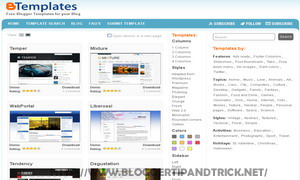
Premium Blogger TemplatesBlogger Templates by PremiumBloggerTemplates.com. A best place to download free premium beautiful blogger templates for your blog.Our templates give to your blog a professional and unique look.

2. BTemplates
BTemplatesBlogger Templates by BTemplates.com. A largest blogger template directory with various categories
3. Blog Template 4u
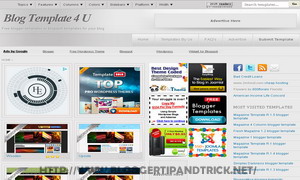
Blog Template 4uBlogger Templates by BlogTemplate4u.com. Blogger Templates Gallery provide thousands of blogger templates.
4. Zoom Template
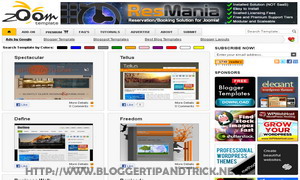
Zoom TemplateBlogger Templates by ZoomTemplate.com. Zoom Template Gallery is a made simple and easy to find more Free Blogger Templates and Free WordPress Themes.
5. Deluxe Templates
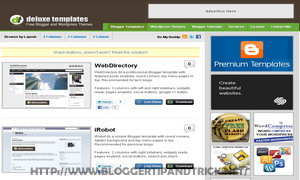
Deluxe TemplatesBlogger Templates by DeluxeTemplates.net. A simple and beautiful blogger templates collection.
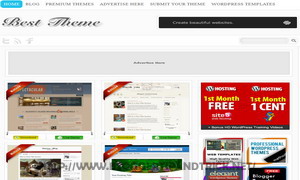
6. Best Theme
Best ThemeBlogger Templates by BestTheme.net. Can found beautiful blogger template collection here.
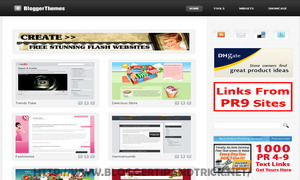
7. Blogger Themes
Blogger ThemesBlogger Templates by BloggerThemes.net. A site which provide Unique Blogger Templates.
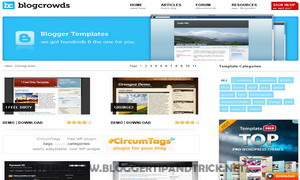
8. Blogcrowds
BlogcrowdsBlogger Templates by Blogcrowds.com. Another good and simple blogger template collection.
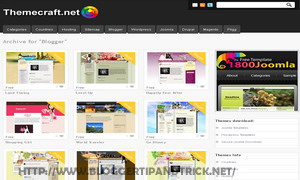
9. Themecraft
ThemecraftBlogger Templates by ThemeCraft.Net.
10. Blogger Templates Free
Blogger Templates FreeBlogger Templates by BloggerTemplatesFree.com.


Get New Google Bar right now - Hack


How to get Get New Google Bar right now?


1. Go get this extension to change cookies. http://goo.gl/CeKtT
2. Load Google.com and right-click to edit the cookies.
3. Change “PREF” to this (try triple-clicking it):
ID=03fd476a699d6487:U=88e8716486ff1e5d:FF=0:LD=en:CR=2:TM=1322688084:LM=1322688085:S=McEsyvcXKMiVfGds
4. Don’t forget to save your changes at the bottom.
5. Reload and you have the new Google bar.


1. Get this Extension, then click Add to Chrome
Get the "Edit This Cookie" extension: http://goo.gl/CeKtT

2. Click Install

3. Go to Google.com while you're logged into your Google account
Right-click, then select Edit Cookies

4. Click PREF, then select the "value" box by double clicking, background will turn blue.

5. Copy and paste this code into that box:
ID=03fd476a699d6487:U=88e8716486ff1e5d:FF=0:LD=en:CR=2:TM=1322688084:LM=1322688085:S=McEsyvcXKMiVfGds

6. At the bottom of the page, click "Submit Cookie Change."

7. Restart your browser, then roll over the Google logo and take a look at the new Google user interface!
(VIA:Mashable)

PayPal Launches Facebook App for Sending Money to Friends


If you forget birthdays until Facebook reminds you, or you constantly fear that your friends pay for lunch more often than you, then PayPal's new Facebook app is for you. Send Money is aptly named, and while you can choose to bundle your e-payment with a silly customized greeting card, there's no need for it. Here's how to settle your accounts:
  1. Log on to Facebook and visit the Send Money page.
  2. Click "Send a card with money" if you want to make a card. Click "or just send money" if you want to get down to business right away.
  3. Step 2: Send a card or just send money.
    Step 2: Send a card or just send money.
  4. Give PayPal permission to see your friends list and make posts in your name.
  5. Type in your friend's name, then e-mail address (needed for fraud protection and account confirmation).
  6. Write a message to your friend; if you haven't told him what you're doing, an explanation would probably be most welcome. You can attach photos or YouTube clips, if you'd like.
  7. Step 5: Create message.
    Step 5: Create message.
  8. Add money. If you use your bank info or PayPal account, there's no fee. If you use a credit card, there is a fee that currently stands at 2.9 percent plus 30 cents in the U.S.
  9. You'll need to sign in to your PayPal account to confirm and choose a payment method. You can also tell Send Money to skip this step in the future when using the same computer, but you may want to keep another layer of security active.
  10. Your friend will see a notification in Facebook and in his e-mail. Once he logs in to PayPal, he should soon see a bump in his account balance.
That's all there is to it. From now on, forgetting your wallet is no excuse.
(Via Mashable)

How to get the new YouTube layout right now


The new YouTube design is slowly rolling out to users, but if you aren't the waiting kind, there is a way to enable it right now.
You will need to visit YouTube.com and add a line of code to the console. Don't worry, it sounds worse than it really is.
Once you have loaded the site, press the following key combo for your respective browser.
Firefox:
Ctrl/Cmd+Shift+K
Chrome:
Ctrl+Shift+J (Windows)
Cmd+Alt+J (Mac)
Click to enlarge
(Credit: Screenshot by Jason Cipriani)
Once the console is open, type (or copy) the following line of code:
document.cookie="VISITOR_INFO1_LIVE=ST1Ti53r4fU";
Close the console, refresh the Web page, and like magic, you should now have the new YouTube design.
Users are reporting mixed results with adding the same line of code in Safari. We were unable to get it to work. If you are able to get it to work in Safari, feel free to share how you did it in the comments below.
What are your thoughts on the redesign? Love it, hate it, or don't really care? Let us know!